How to Unblock Someone on Snapchat: Step-by-Step Guide
Blocking someone on Snapchat can feel like the right call in the heat of a moment, but the next day you might wonder how to undo it. The good news is that Snapchat makes unblocking fairly simple once you know the menu path, and you won’t need to worry about awkward notifications. This guide walks you through every step across iPhone, Android, and the web, plus what to do when the person doesn’t reappear right away.
Snapchat Daily Active Users: 406 million ·
Steps to Unblock: 4 ·
Supported Platforms: iOS, Android, Web ·
Blocked Contacts Limit: None
Quick snapshot
- Blocked list is accessible via Settings > Blocked on iOS and Android (Snapchat Help Center (official support))
- Unblocking does not send a notification to the user (Snapchat Help Center (official support))
- Whether unblocking restores previous chat history (Snapchat Help Center (official support))
- Exact delay before unblocking takes effect across all servers (YouTube tutorial (2024 guide))
- After unblocking, you must send a new friend request to reconnect (YouTube tutorial (step-by-step guide))
- Unblocking takes effect immediately after tapping X (Snapchat Help Center (official support))
- No waiting period is required for the change to apply (YouTube tutorial (process overview))
- Search for the user and send a new friend request (YouTube tutorial (2024 guide))
- The unblocked person can view your Stories and send Snaps again (Snapchat Help Center (official support))
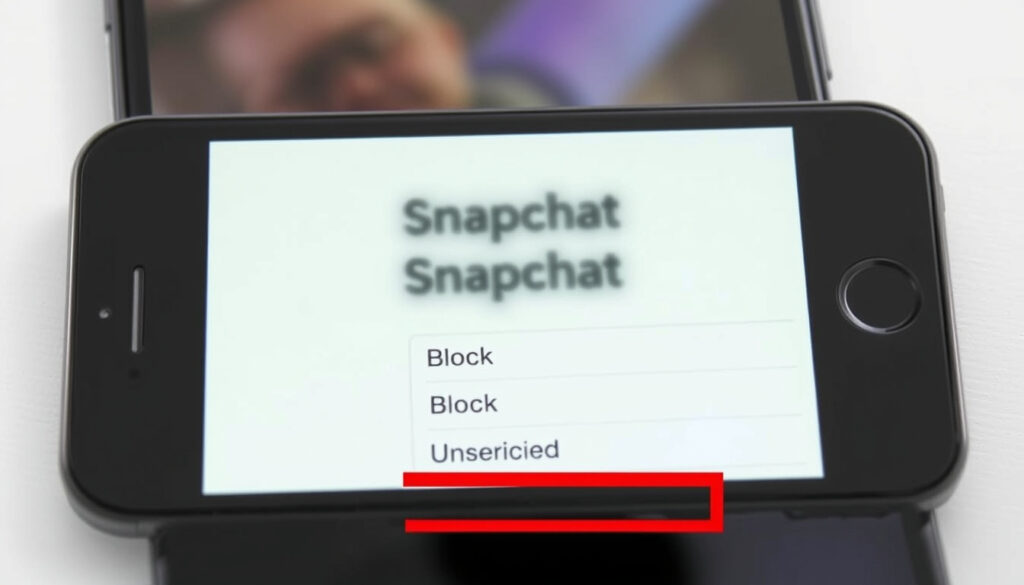
- Open Snapchat, tap your profile icon, then the gear icon to enter Settings.
- Scroll to Privacy Controls and tap “Blocked”.
- Tap the X icon next to the person you want to unblock.
- Confirm by tapping “Unblock” on the prompt.
Here are the essential facts about the unblocking process:
| Detail | Value |
|---|---|
| Number of steps to unblock | 4 |
| Available platforms | iOS, Android, Web |
| Blocked list location | Settings > Blocked |
| Notification on unblock | No notification sent |
How do I find my blocked list on Snapchat?
Your blocked list is tucked inside Snapchat’s settings, and the path is identical on iOS and Android. Knowing exactly where to look saves you from poking around aimlessly.
Accessing Settings
- Tap your profile icon in the top-left corner of the camera screen.
- Tap the gear icon in the top-right corner to open Settings.
- This is the same menu that controls privacy, notifications, and account preferences (Snapchat Help Center (official support)).
Scrolling to the Blocked Section
- Scroll down until you see the Privacy Controls heading.
- Under that section, tap “Blocked” — a screen appears with every user you have ever blocked (YouTube tutorial (visual walkthrough)).
- The list shows usernames and display names in chronological order of when they were blocked.
The implication: Snapchat keeps a tidy, accessible record of every block you’ve made. There is no limit to how many people you can block, and the list is stored under the same privacy section on all mobile platforms.
How do I unblock someone on Snapchat?
Once you’ve opened the Blocked list, removing someone takes about two seconds. The action is immediate and reversible — you can always block them again later.
Unblocking via Settings
- On the Blocked screen, locate the person you want to unblock.
- Tap the X icon next to their name.
- A confirmation prompt appears asking, “Are you sure you want to unblock this person?” (YouTube tutorial (confirmation step)).
- Tap Unblock to confirm, and the person is removed from your block list (Snapchat Help Center (official support)).
Tapping the X Icon
- The X is the only action needed — there is no separate “unblock button” hidden elsewhere.
- After tapping X, the name disappears from your blocked list instantly.
- The process is identical on iOS and Android (YouTube tutorial (2024 guide)).
What this means: Snapchat designed the flow to be one-tap and unambiguous. The X doubles as both an unblock trigger and a visual signal that the user is no longer restricted.
How do I add someone back on Snapchat after blocking them?
Unblocking is not the same as re-adding. Many people assume the friend automatically returns to their list, but that is not how Snapchat works.
Searching for the User
- Go back to the main camera screen and tap the search icon (magnifying glass) at the top.
- Type the person’s username or display name.
- If their profile is public or if they have not changed their privacy settings, they should appear in the search results (YouTube tutorial (2024 guide)).
- If the user does not appear, double-check that they are removed from your blocked list.
Sending a Friend Request
- Tap the user’s name to open their profile.
- Tap Add Friend — or the + icon depending on your app version.
- The other person will receive a friend request and must accept it before you can send Snaps or Chats again (YouTube tutorial (step-by-step guide)).
- If the user’s privacy settings require mutual friends, you may need an existing mutual connection to find them in search.
The catch: Unblocking restores the ability for the other person to see your public content and send you messages, but it does not rebuild the friend connection. You must initiate a new request, and they have to accept.
Users who expect an automatic re-add after unblocking will be left waiting. The two-step workflow — unblock then re-add — is deliberate: it gives both parties a chance to consent before reconnecting.
This design ensures that reconnection is mutual and prevents unwanted contact from being restored automatically.
How do I find someone after I unblock them on Snapchat?
Occasionally, you unblock someone and then cannot locate them in search. This is the most common frustration after unblocking, and it usually has a straightforward explanation.
Using the Search Bar
- Search by exact username, not just display name or nickname.
- If the account is private and you are not friends, the user may not appear in search results at all.
- Try searching from a friend’s account if you share a mutual contact — that can surface the profile (YouTube tutorial (visual walkthrough)).
Checking Recent Conversations
- If you had an active chat before blocking, the conversation may still exist in your chat feed — but grayed out.
- After unblocking, check the Chat screen to see if the conversation reactivates.
- If the conversation is gone, it confirms that blocking removes the chat thread (Snapchat Help Center (official support)).
Why this matters: The person you unblocked may not show up for two reasons — either their privacy settings hide them from non-friends, or the account has been deactivated. Double-check the username spelling and try a mutual friend’s account as a bridge.
How to restore someone you blocked on Snapchat?
Snapchat does not offer a “restore” button. The only path is the unblock-plus-add sequence, which some users find counterintuitive.
Understanding Restore vs Unblock
- There is no separate restore feature in Snapchat (Snapchat Help Center (official support)).
- “Restore” in other apps often means recovering the full friend relationship and chat history. Snapchat does not do that.
- Unblocking only removes the restriction — it is a partial restoration at best.
Re-adding as a Friend
- After unblocking, the person is not in your friends list.
- You must search and send a friend request as described above.
- If the other person’s privacy settings are set to “Everyone,” they can send you Snaps and Chats immediately after unblocking — even before you add them (YouTube tutorial (step-by-step guide)).
The pattern: Snapchat treats blocking as an on-off switch, not a history eraser. The trade-off is that unblocking is quick and notification-free, but the social reconnection requires a deliberate second step.
If you unblock someone and they still do not appear in search, the account may have been deleted or the user may have blocked you back. There is no Snapchat tool to check whether another user has blocked you.
Quotes from Snapchat Support and users
You can unblock a friend by opening your profile, going to Settings, tapping Blocked, and tapping the X next to the person’s name.
— Snapchat Help Center (official support)
Unblocked people can send you Snaps, Chats, and view your Stories and Charms.
— Snapchat Help Center (official support)
Previously blocked people are removed from your friends list, so you must re-add them if you want to contact them again.
— YouTube tutorial (step-by-step guide)
The unblock process is the same on iOS and Android.
— YouTube tutorial (2024 guide)
Summary
Unblocking on Snapchat is a four-step process that works identically across iOS, Android, and the web, but the real friction comes after the unblock — when the person does not automatically reappear as a friend. For the estimated 406 million daily active users on Snapchat, the implication is clear: unblock first, then re-add deliberately, or risk wondering why the person has not come back.
Related reading: How to Deactivate Facebook Account · What is a Sociopath? Definition, Symptoms, and Key Differences
Frequently asked questions
Does unblocking someone on Snapchat notify them?
No. Snapchat does not send a notification when you unblock someone. The person only learns they have been unblocked if they try to send you a Snap or Chat and it goes through (Snapchat Help Center (official support)).
Can I unblock someone I unfriended but did not block?
If you only unfriended someone (removed them from your friends list without blocking), they will not appear on your Blocked list. You can simply search for their username and send a new friend request — no unblock step is needed.
What happens to our chat history after unblocking?
According to Snapchat’s official guidance, blocking removes the chat thread. After unblocking, any previous Snaps or Chats are not restored. You start with a clean conversation slate (Snapchat Help Center (official support)).
How long does it take for unblocking to work?
Unblocking is immediate on Snapchat’s side. Once you tap X and confirm, the restriction lifts. Some users report a brief delay of a few seconds before the change propagates across Snapchat’s servers (YouTube tutorial (2024 guide)).
Can I block someone again after unblocking them?
Yes. Unblocking is fully reversible. You can go back to the Blocked section — or directly to the person’s profile — and block them again at any time. There is no cooldown or limit.
How do I block someone on Snapchat?
To block someone, open their profile by tapping their name in a chat or search result, tap the three-dot menu in the top-right corner, and select Block. You can also block from the Blocked section in Settings.
How many people can I block on Snapchat?
Snapchat does not enforce a maximum number of blocked users. You can block as many accounts as you need, and the full list appears under Settings > Blocked.
More related posts
 Heidi Alexander: Transport Secretary, Biography, Family & Career
 Merritt Wever: Emmy-Winning Actress and Career Highlights
 Lee Byung-Hun: Squid Game, Scandals, Wife, Languages
 Eilish McColgan: Age, Height, Partner, Medals, 5k Time
 Jacob Elordi: Age, Height, Net Worth & Movies (2025)
 Noah Schnapp: Age, Relationships, Career & FAQ (2025)
 iPhone 12 Pro Max 2026: Worth It? Trade-In Value & Support